
When you’re invited to a new course at Smarter by 1 Degree, you’ll receive an email invitation to join your class. Follow these simple steps to access your course and set up your student account.
Step 1: Check Your Email for Your Invitation
You’ll receive an email from Smarter by 1 Degree letting you know that a new course has been added to your account.
Open the email titled “You’ve Been Invited to a Course!”Click the invitation link inside the message to accept your
class.
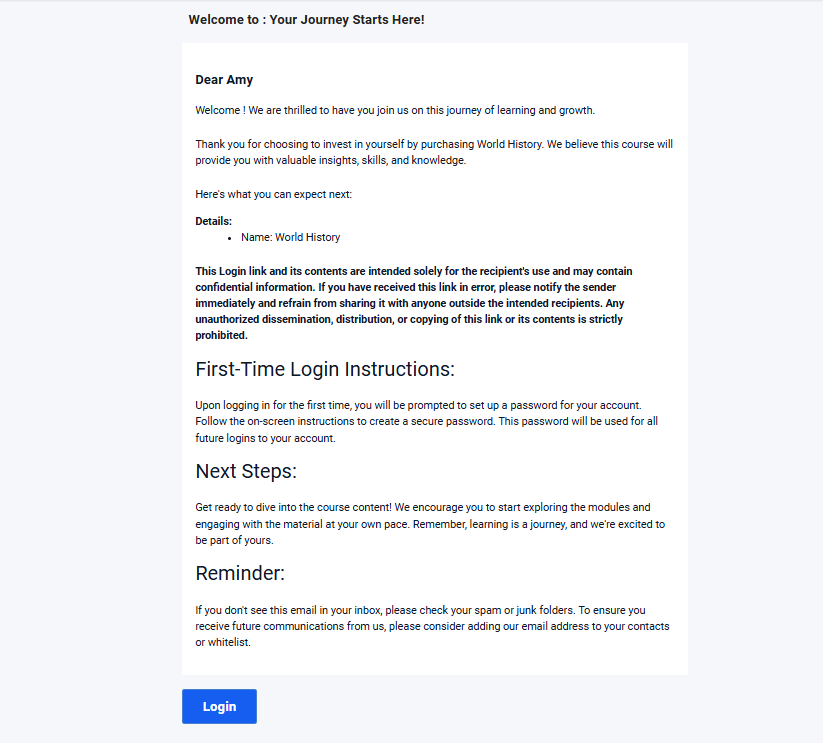
The link will take you directly to your SB1D Student Portal login page.
Tip: If you don’t see the invitation in your inbox, check your spam or promotions folder.
Step 2: Create Your Account
If this is your first time logging in, you’ll be prompted to set up your account:
Click “Create Password.”
Enter a secure password, then confirm it.
Click “Set Password.”
Once your password is created, you’ll be taken directly to your Student Dashboard.
Step 3: Access Your Courses
On your dashboard, you’ll see all the courses you’ve been invited to.
Click on any course title to open it, this will take you straight into your learning platform.
You’re all set! From here, you can begin your Orientation Course or start working through your first class.
Was this article helpful?
That’s Great!
Thank you for your feedback
Sorry! We couldn't be helpful
Thank you for your feedback
Feedback sent
We appreciate your effort and will try to fix the article