
When you launch your first final exam in AMP Educator, you’ll be prompted to install the SmarterProctoring Chrome Extension. This process is built into the testing system so you don’t need to search for anything or download it in advance. SmarterProctoring will guide you step-by-step through the setup before your exam begins.
Note: You’ll only need to install this once. After that, the extension will automatically run for all future exams.
Why You Need the Extension
The SmarterProctoring automated system uses a Chrome extension to ensure your test session runs smoothly and maintains academic integrity.
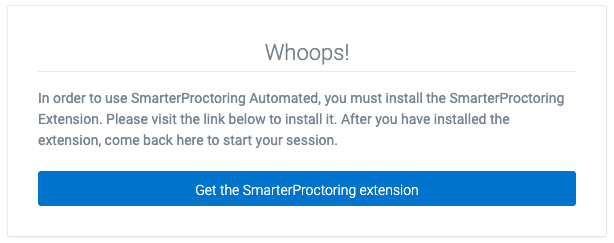
If you try to launch your exam without the extension installed, you’ll see a message like this:
Step-by-Step Installation
➤ Step 1: Click “Get the SmarterProctoring Extension”
When prompted during your exam setup, click the button labeled “Get the SmarterProctoring Extension.
A new tab will open, taking you directly to the Google Chrome Web Store.
➤ Step 2: Click “Add to Chrome”
On the Chrome Web Store page, click the Add to Chrome button.
➤ Step 3: Confirm the Installation
When the confirmation pop-up appears, click Add Extension.
➤ Step 4: Wait for the Confirmation Message
After a few seconds, Chrome will confirm that the SmarterProctoring Extension has been successfully added.
Once confirmed, you can close that browser tab.
➤ Step 5: Return to SmarterProctoring
Go back to your SmarterProctoring exam tab.
You’ll see that the “missing extension” message is gone — meaning the system has detected it.
Click Continue to proceed with your exam.
Additional Notes
You will be prompted automatically to install the extension when you launch your first test the system will walk you through each step.
Once installed, you won’t need to repeat this process for future exams.
Troubleshooting Tips
If you run into any issues:
Make sure you are using Google Chrome (not Safari, Edge, or Firefox).
Close all other Chrome windows and try again.
You can also install the extension directly using this link:
SmarterProctoring Chrome Extension
Was this article helpful?
That’s Great!
Thank you for your feedback
Sorry! We couldn't be helpful
Thank you for your feedback
Feedback sent
We appreciate your effort and will try to fix the article